
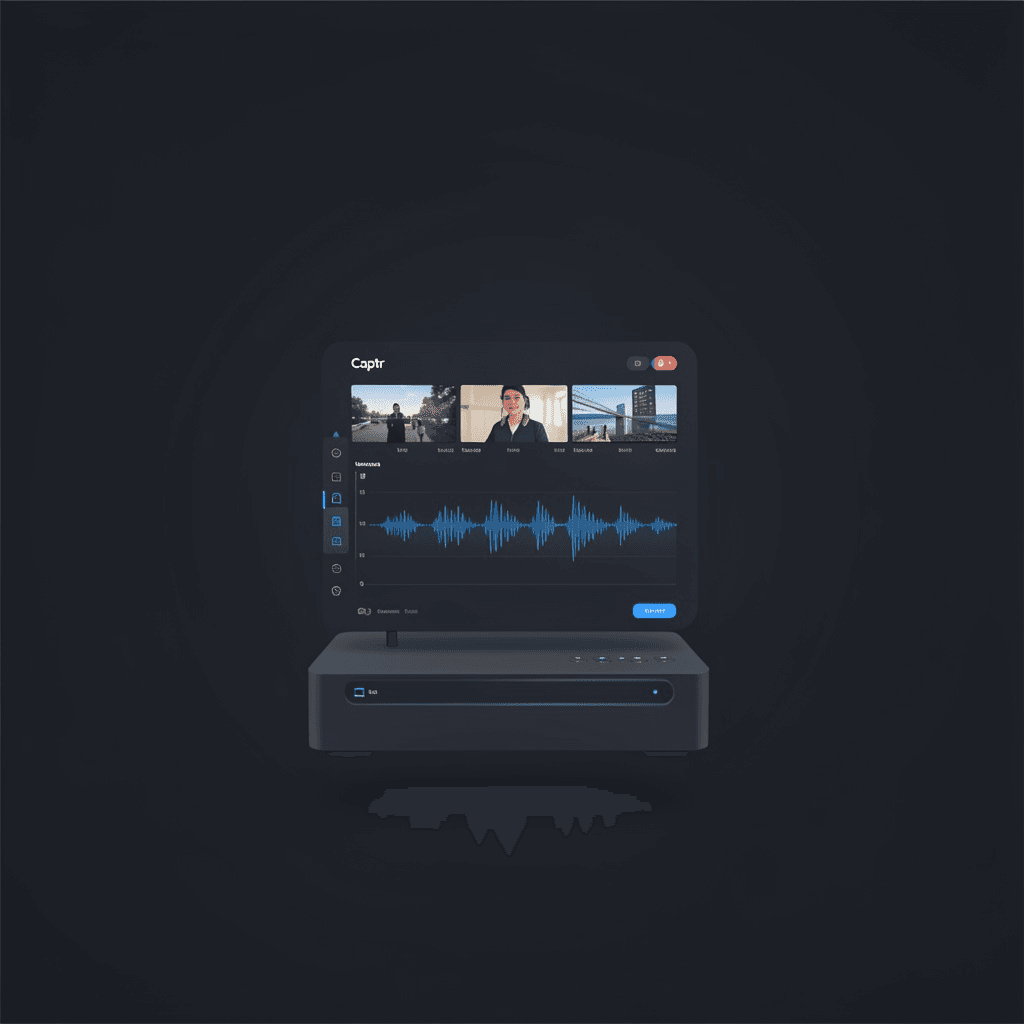
Captr
Professional Unity-based capture card software with modern dark UI for seamless video and audio capture
Timeline
Jan 2026
Role
Solo
Team
Solo
Status
CompletedTechnology Stack
Key Challenges
- Building a capture card UI in Unity UI Toolkit (UXML/USS) instead of the standard uGUI Canvas — a less-trodden path with fewer examples to copy from
- Handling audio drift that creeps in over long capture sessions, requiring both scheduled auto-sync and an on-demand manual sync hotkey
- Keeping WebCamTexture performant across the full resolution range (720p → 4K) and frame rate targets (30/60/120 FPS) without dropping frames
- Persisting capture card, audio device, resolution, and sync preferences to JSON across launches without a settings framework
Key Learnings
- UI Toolkit (UXML/USS) is a great fit for settings-heavy desktop apps — declarative layout, themeable stylesheets, and a proper selector model beat hand-wiring uGUI prefabs
- Real-time audio capture from USB capture cards drifts; the fix is a periodic re-sync loop, not better hardware
- A shadcn/ui-inspired zinc palette translates cleanly into Unity USS — the same neutral-grey / accent contrast works on a dark desktop window
- AI assistance can carry you a long way in an unfamiliar engine, as long as you treat the model as a fast pair-programmer, not an oracle
The Problem
Capture card software is one of those things streamers and content creators expect to "just work" — but a lot of the existing tools feel like they were designed in 2008. Big chunky buttons, dated chrome, settings buried in three levels of menus. The original VideoGameCapture by ImmerNochNoah did the hard part — actually pulling a clean video and audio signal from a USB capture card — but the UI hadn't aged well.
I wanted a modern, dark, keyboard-driven rewrite. Something a creator could pop open on a second monitor, see at a glance, and drive without taking their hands off the keyboard.
What I Built
Captr is a focused, modern UI rewrite of VideoGameCapture, built on Unity 2022.3.62f3. It keeps the capture pipeline that worked and replaces the entire presentation layer with a clean, shadcn/ui-inspired dark theme built in Unity's UI Toolkit (UXML/USS), plus a full keyboard shortcut model for hands-off operation.
A full disclosure: I'm new to Unity, and this project was built with significant AI assistance. Treat it as a case study in how far you can get in an unfamiliar engine with a fast pair-programmer, a clear reference design, and a willingness to read the docs.
How It Works
The app boots into a single scene (MainScene.unity) that hosts a fullscreen video surface plus two slide-in panels — a settings panel on the left and a keyboard shortcut reference on the right. The capture pipeline runs in three managers:
VideoCaptureManager— wraps Unity'sWebCamTextureAPI, handles device enumeration, resolution/FPS selection, and aspect-ratio fit modes. A live FPS counter overlays the preview.AudioCaptureManager— captures audio from the selected capture card device, exposes volume + mute, and runs an auto-sync loop that re-aligns the audio stream to the video clock on a configurable interval (1–15 minutes). TheRkey triggers an on-demand sync for instant fixes.SettingsManager— serialises the full configuration (capture card, resolution, FPS, aspect mode, audio device, volume, sync frequency) toApplication.persistentDataPath/CaptureSettings.jsonon change.
UI lives in Assets/UI/ as UXML + USS pairs — SettingsPanel, KeymapsPanel, VolumeIndicator — sharing a Common.uss stylesheet that defines the zinc palette and the 300ms slide animation tokens.
Key Design Decisions
UI Toolkit over uGUI
Most Unity tutorials still teach uGUI, but for a settings-heavy desktop app UI Toolkit is the better tool. UXML is a declarative layout format, USS is a real stylesheet with selectors and variables, and the panel-based architecture maps cleanly onto slide-in side panels. The whole UI re-themes from one file.
Auto audio sync, not just manual
Audio drift over USB capture cards is real and gradual — by the time you notice, you're 30 seconds out of sync. A single "press R to fix" key was the original design, but I added a configurable auto-sync on top: every N minutes (default 5), the audio stream re-aligns to the video clock. The R key still exists for the impatient.
Shadcn/ui dark, not game-dark
"Dark theme" in a game engine usually means jet black with neon accents. Captr goes the other way — a zinc/neutral grey palette with subtle borders and a single accent colour, straight out of the shadcn/ui playbook. It looks like a developer tool, not a game menu, which is the point.
Resolutions and FPS as first-class settings
1080p30, 1080p60, 1080p120, 1440p60, 4K30, 4K60 — the device dropdowns only show combinations the capture card actually supports, and the FPS counter in the corner confirms what you're actually getting. If a target is too aggressive for the hardware, the counter tells you before the recording does.
Features
| Area | What it does |
|---|---|
| Video | WebCamTexture capture at 720p/1080p/1440p/4K, 30/60/120 FPS, with aspect-ratio fit modes and a live FPS overlay |
| Audio | Real-time capture with volume control, mute, and drift compensation via scheduled auto-sync + manual R hotkey |
| UI | UI Toolkit (UXML/USS), shadcn-inspired zinc dark theme, 300ms panel slide animations |
| Settings | Persistent JSON in Application.persistentDataPath — capture card, audio device, resolution, FPS, aspect mode, volume, sync frequency |
| Shortcuts | ESC settings, F5 fullscreen, ↑/↓ volume, M mute, R manual audio sync |
Building It Yourself
The project targets Unity 2022.3.62f3 and Windows. To run from source:
- Clone and open in Unity Hub with the 2022.3.62f3 editor.
- Open
Assets/Scenes/MainScene.unity. - Press
ESCto open the settings panel, pick your capture card and audio device, choose resolution and FPS, then Save Preferences. - Build via File → Build Settings → Windows → x86_64.
For distribution, the README documents packaging the built executable into a Windows installer with Inno Setup.
Links
- GitHub: imsudip/captr
- Original project: ImmerNochNoah/VideoGameCapture
- License: MIT
Timeline
Built in a focused two-day session as a modern UI rewrite of an existing capture card tool.
- Jan 2026 — Initial development: Unity WebCamTexture video capture pipeline, audio capture with volume/mute controls, UI Toolkit dark theme interface
- Jan 2026 — Final commit: auto audio sync feature, keyboard shortcuts, persistent JSON settings, documentation